
Organising Images with Lightroom
Lightroom is a powerful Image Management Tool from Adobe. In addition to offering good basic Raw editing, it is also powerful and flexible for managing large libraries of Images.
Now Lightroom is good in that it allows you to import files without moving them from their original locations. For me this is a great benefit as Aperture had a habit of storing everything in a single file. This means that you can only export files from Aperture itself as it is not easy to locate the source file manually.
I then got to thinking… Is the way I currently have my files organised the ideal way. My files were originally stored by event or type, very confusing when trying to recall events.
So I decided I needed to start afresh and this is where Lightroom really excels.


First step was to import all my images into Lightroom and for this I would choose the option to Add. This tells lightroom to leave my files where they are.
Click Add to Leave files where they are but still import
So now all my files are sitting in lightroom but unorganised.
Lightroom extracts all EXIF information for every file it imports, this meant that I could filter my photos by year and by date.
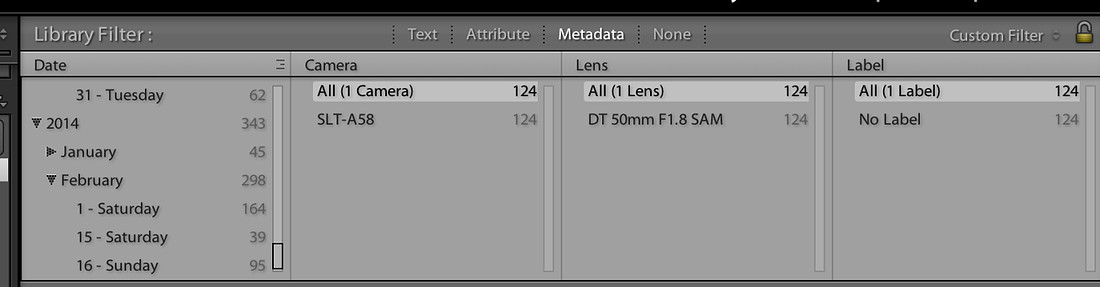
Decision made, I was going to organise my images by Year and then by Event.
Next step was to create my folder structure.
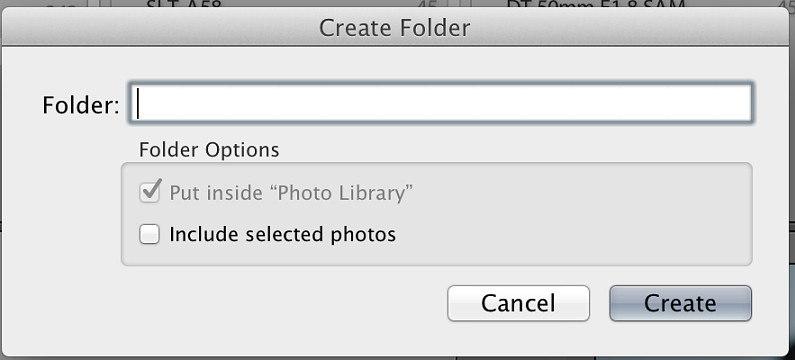
Right clicking on your libraries folder will allow you to create a new sub-folder.

So armed with working on my 2014 images, I entered 2014 as my Folder name and clicked create.
Next step is to click on a date in 2014. Clicking on 1 February showed me that I had 164 photos and also displays them directly below.
Now in this view I could see that this date related to a single event which was a Photo shoot I had done that day with a Model named Frankie Smith.
So again Right clicking on my 2014 folder I created a new sub-folder called Frankie Smith Photo shoot
Its at this point that a few things are worth mentioning.
Lightroom allows you to review your files and pick or reject them. However, the default in LR is when you select a file you then have to navigate to the next image and keep doing this for every single image.
Wouldn’t it be great to make your decision and LR move automatically to the next image? Well it can and its easy.
Click on Photo >> Auto Advance
Now all I needed to do was select the photos I want to pick or reject. Simple really, all I need to do now is click on the first image in the current selection and press P for Pick or X for Reject
What if I am not sure about a couple of images, again there is a nice way of comparing.
Hold down Cmd on the keyboard and click on each image you are unsure off and then press N
This will only show on screen the images you have selected. Now press L on the keyboard twice. This will darken the screen and you can easily see the pictures without any clutter. Now pressing X for reject for an image removes it from view then you can click P for pick on the remainder.
Great I have now reviewed all the pictures from the Frankie Shoot the next step is to filter for just my picked ones.
By clicking on the White flag in the Library filter section, I can display only my picked selection.

Now I can select all of these to move by choosing Edit >> Select by Flag >> Flagged.
Now when I drag this set of images over the Frankie Smith Photoshoot folder LR asks me if I want to move them.
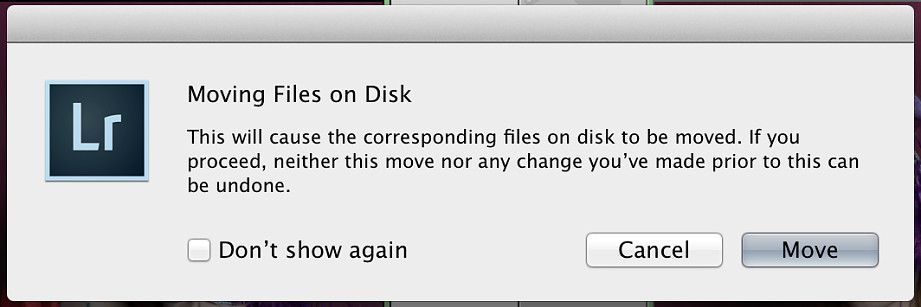
Clicking Move and not only does it move it in Lightroom, but also physically on my drive.
Great so now I have rearranged all my images into appropriate folders and also by year.
Now I only have one problem remaining. My original filenames are a mixture of camera filename like DSC0011 or by event like paralympics0024.
Wouldn’t it be great to rename all of these file quickly and in a format that will avoid duplicate filenames and make it more meaningful?
There is. Click on the top level folder and Choose menu Edit >> Select All
Now click on Library >> Rename
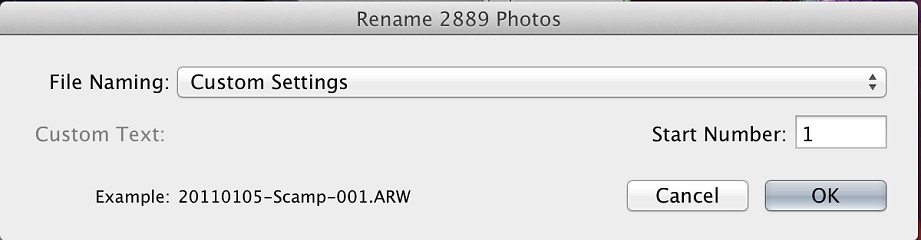
And the click on Edit
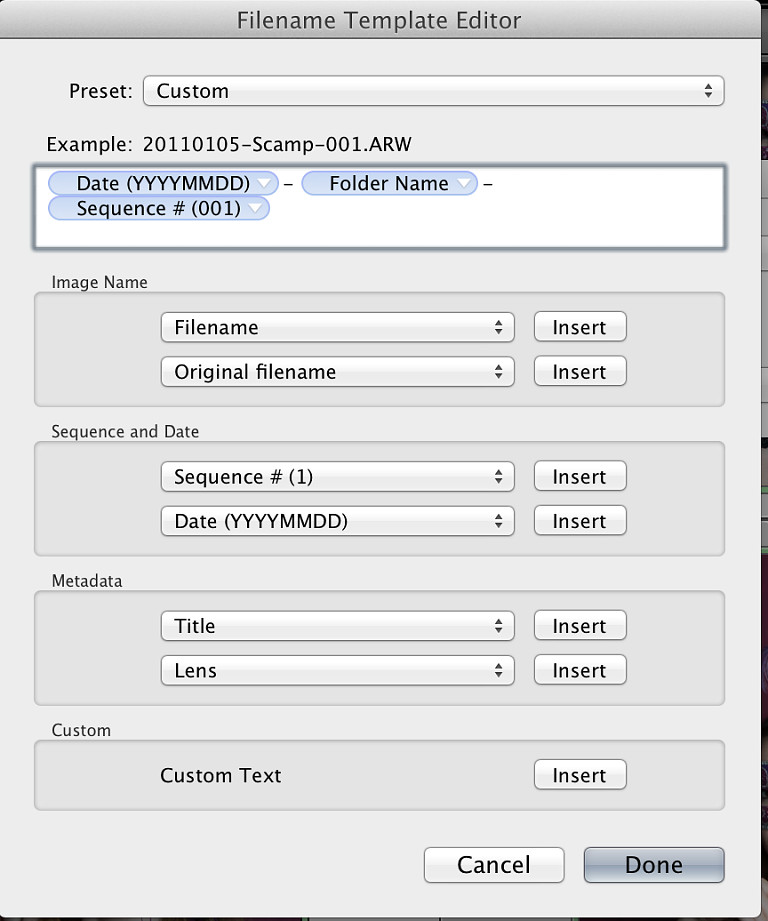
As you will see from the screenshot I like to name my files in Year, Month, Day, Event and a unique number.
Click Done to confirm your settings
Put a start number in (or just leave to 1) and click OK
In almost no time at all Lightroom has now renamed physically all my image files.
Now whenever I export a file to this site, I know from the filename exactly what year and what folder the source file is in.
So in very little time I have been able to import my pictures, determine what year they were from (as long as I remember to set the date in camera!) Pick or Reject and rename them all very quickly.
That’s how powerful Lightroom is for the simplest of tasks!
