
The Brenizer Technique

What is the Brenizer method?
Well in essence, Ryan Brenizer simply refers to it as panoramic stitching. Interestingly this method isn’t new and the phrase wasn’t coined by Brenizer himself.
So, instead of stitching together a number of horizontal images together to form a basic panorama, instead you will stitch together a series of images in all directions i.e horizontally and vertically. The result is to end u with a large image. Now be warned this does mean that you will end up with a staggeringly high resolution image.
What makes this different from conventional panoramas is the use of a very shallow depth of field. Which when combined will provide an image with an even shallower depth of field than can be achieved in the real world.
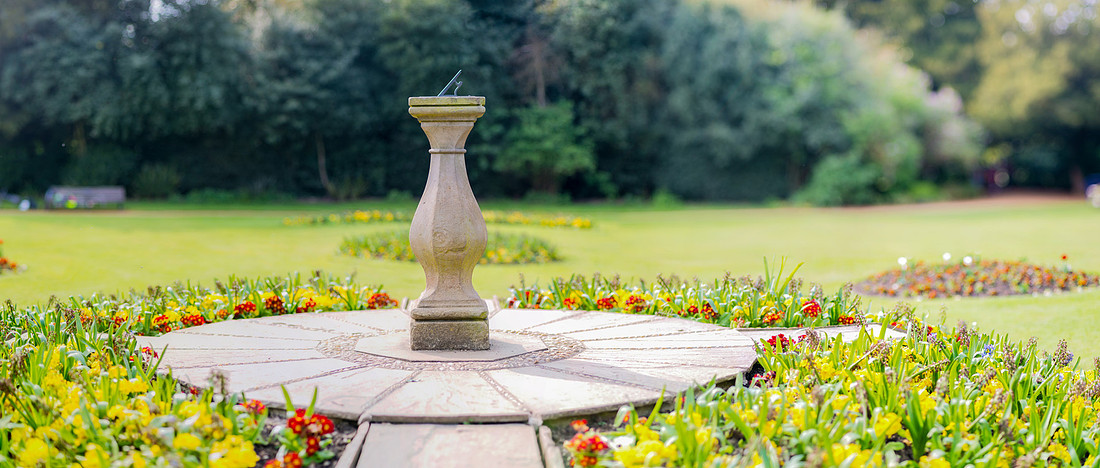
In the image above, I used a Nikon 85mm 1.8G lens and shot at F1.8 for every shot taken. The total number of shots used were 51.
As you can imagine this is a huge image. The key to this is to ensure that you hold the focus lock down from the first image to the last and shoot in raw.
The reason for this is to ensure that every shot when combined will have the same effect as if you shot with an ultra wide lens with a shallow depth.
Now why would I choose to do this. Well with a wide angle lens I could achieve the same image, but everything would be in focus. With a telephoto lens you can end up with a flat image, with focus blur in the background.
How to apply the Brenizer method
To start with use a fast prime lens, I use a 85mm F1.8G as this allows me to take full advantage of its shallow depth of Field.
Setup your camera by doing the following:
I have a nikon D800 so I am fortunate enough that the AE-L/AF-L button which I can hold down while using the shutter to take my shots. If you don’t have that you will need to separate focus lock from exposure, using a technique known as back button focussing. Why is this important? Well when you are taking a series of shots you are aiming for each shot to be taken under the same conditions, i.e. the focus isn’t changing every time you take a picture.
Set a White Balance (not auto). As you will be stitching a number of images together. Obviously you could adjust for white balance afterwards, but the less correction you do post process the better.
Choose whether to shoot in JPEG or RAW. The advantage with raw is blending images in photoshop. But bear in mind the flip side to this is that the file sizes are a lot larger. If you have set the white balance then you are probably okay to use JPEG.
Finally choose what size image you are using. Remember that as you will be combining a lot of images, the final output is a high resolution, so consider the larger the individual files the more processing time you will spend.
Now with your camera setup, the next step is to plan your shoot.
Choose a location that will visually appeal to you and visualise where you are going to stand. You will be taking a number of photos from the same position.
Next choose where the key point of focus will be. In my picture I chose the metal part of the sun dial.
Finally be prepared to pause. When I took the above image, it was in a busy park, so I needed to pause every time someone walked past. This is another reason why it is important to keep hold of AE-L/AF-L until you have taken your final shot.
Now the key to shooting panorama’s of any type is to ensure that you leave enough overlap between images. This is to help photoshop determine which two images to combine when you are bring in 10 images at a time!
So, choose your start point, hold down AE-L/AF-L and then press the shutter button, now keep hold of AE-L/AF-L and move to your next zone. Don’t move your feet, but instead twist and turn ensuring that you take enough images to cover the whole scene.
Thats it, you’ve now taken all the shots you need (and probably more than) the next step is to merge your photos with photoshop.
Creating the image in Photoshop
The first lesson I learn’t about Photoshop is not to load all your images at once into photoshop! Why, well simply because unless you have a supercomputer, your mac/pc cannot cope.
I found the safest way is to work with 6 images at a time.
Fire up Photoshop. I use the Creative Cloud 2014 version.
Click on File > Automate > Photomerge
A new window will appear, under Layout choose: Auto and make sure Blend images together is checked.
Click on Browse and choose the first six images you took, click Open and then click Okay.
Right now is coffee time, while you wait.
Now save that file as a .psd and then close the first six images down.
Repeat the above steps for the next six, but make sure you include open files as well. This is the reason why I closed the other six.
When you save the .psd replace the original.
Once you have merged all the images you need, crop the image on screen and save.
If like me there is a small section that is missing, this is where content aware fill in Creative Cloud edition comes into force.
drawing around the missing area with the lasso tool, right click and choose content aware fill. Creative cloud looks at your overall image to determine what it thinks was missing. This is usually good enough.
Finally you now have a large image with which you can do basic exposure adjustments etc. to it.
And that’s basically it, once you get the knack of planting your feet, keeping the focus lock on and shooting in a pattern to cover enough images to stitch together, its fairly simple.
