Retouching an Image with Lightroom

Following on from my photo shoot with Frankie I decided I had a lovely headshot with plenty of light in the background, I thought to myself I wonder what I could do to this with Lightroom.
Now Lightroom now offers enough additional capabilities to allow you to edit a picture, but is it enough to clean up an image?
So the purpose of this blog is to walk through a headshot retouch to demonstrate how capable Lightroom is.
I could have used Photoshop, but I thought why not see how much Lightroom can do before a image needs to be done in Photoshop.
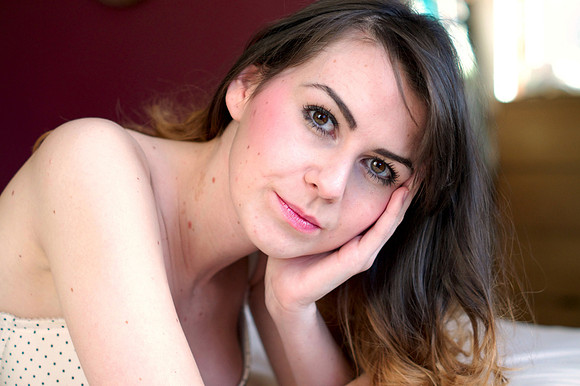
This is the original image before any editing has taken place
Now I feel that the above image is lovely as it is.
The first dilemma I have is how to deal with blemishes. I watched a video where a statement was made that if something is likely to disappear in two weeks then feel free to remove it, if not leave it alone. I have also heard other photographers state that if they own the image then they can edit it as they see fit.
I am not fully in either camp, although I appreciate the former statement as being most appropriate. My judgement is in future to understand from the model how they feel.
For the purposes of this article lets assume that we are going to remove all blemishes and any other characteristics to leave the individual with a completely unblemished image.
After much dithering, I decided I need some form of workflow, or at least a list of actions to take. After some more dithering, followed by a coffee, this is my ordered list of to do activities.
- Adjust White Balance
- Remove blemishes
- Soften around the eyes
- Soften the skin
- Boost the irises
- Whiten the eyes
- Saturate the lips
- Add some highlights
- Darken the eyebrows
Now one thing I have learn’t in the short time I have been using Lightroom is that the Histogram is your friend.
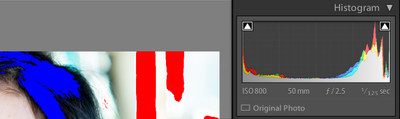
Most of us are familiar with reading histograms, after all, they’re on the back of almost every dslr/dslt today.
However with Lightroom if you click on the two arrows in the top left and top right corner, this tells Lightroom to highlight clipping in both Dark (shown in Blue) and Light (shown in Red)
That way as you adjust Whites, Blacks, Shadows and highlights you will see these colours disappear. Now sometimes its fine for a bit of clipping but as a guide to balancing your image its great.
So now I have adjusted the basic picture, its off to start working through my workflow.
Stage 1 Adjusting White Balance
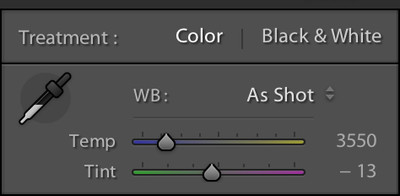
Lightroom offers a number of ways to adjust the white balance.
The Eye dropper will allow you to select a grey area, as you move your mouse around the screen, the preview area on the navigator tab (left hand side of the screen) shows a live preview of the effect. Now some photographers make use of a grey card, this can then be used by the eye dropper.
The same applies if you click on the Drop down area under WB: this allows you to select from a number of presets, however majority of the time the As Shot mode will suffice.
So adjust the picture as you see fit and off to stage two.
Stage 2 Removing Blemishes using Heal

The Spot Removal Tool (found underneath the histogram) is fairly powerful.
Click on the icon to switch it on.
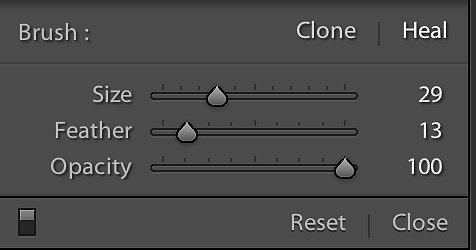
This menu will allow you set the size of brush and whether to Clone or Heal
Clone will make a copy of another area, whereas Heal does the same but then tries to match it with the area you are healing.
In other words if you click on a spot with heal, Lightroom will attempt to hide it as well as it can. And believe me the majority of time it will.
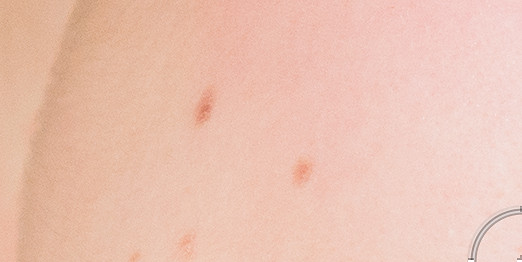
Click on a spot with the Heal Brush (Circle)
If Lightroom chooses a similar area you don’t agree with press / on the keyboard and it will choose another area.
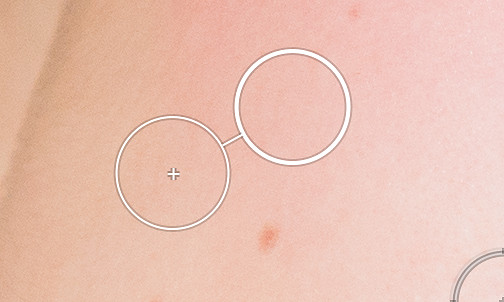
So as you will see it doesn’t take long to clear up any blemishes.
Stage 3 Cloning under the eyes
Now new to Lightroom 5 is the ability to drag your bush across an area for it to heal/clone.
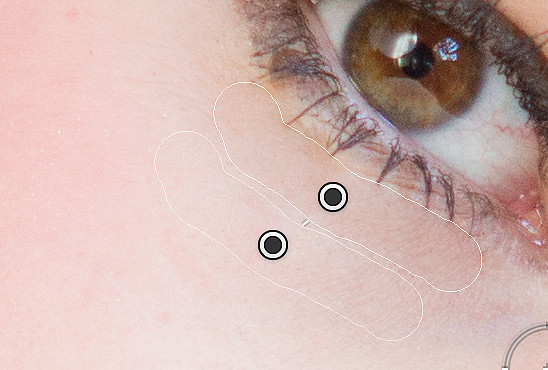
Dragging the brush while in Heal mode will select a similar area.
Now all you need to do is reduce or increase the opacity brush in the Spot edit menu and straight away you have reduced any lines under the eyes (if any were there to start with!)
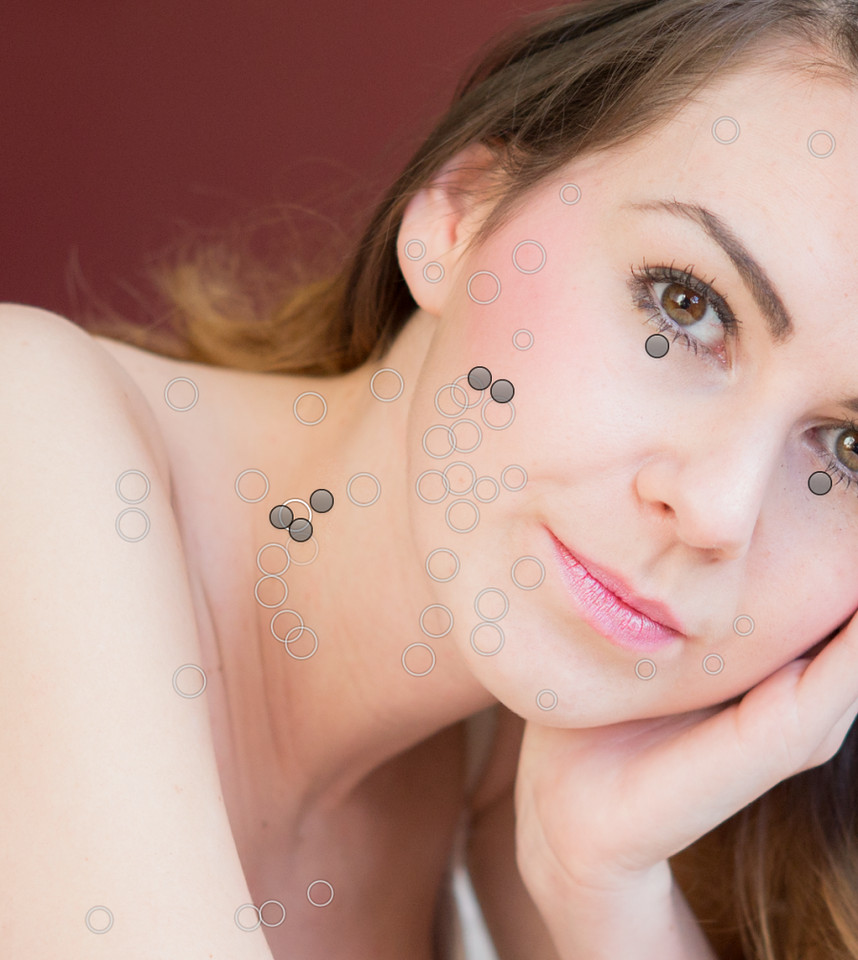
Now that you’ve marked areas for healing, and again I’ll leave it up to you how far you wan’t to go. I like to take a Snapshot
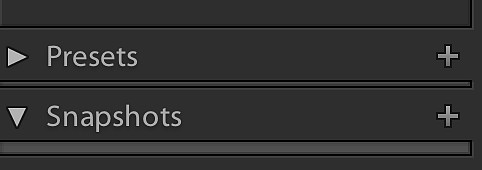
Think of Snapshots as a Time Machine for your workflow.
by clicking on the + and type in a description. This gives you an option to effectively revert back to this stage later on, if you realise you have made a mess of post processing.
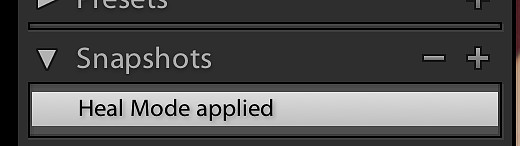
Now you can create one for every step in your workflow and that way you can go back as many stages as you like. This is far more efficient than remembering how many undo’s you need to do.
Stage 4 Softening the Skin

A couple of icons to the right of the Heal brush is the Adjustment Brush. Click on this to open a large menu of adjustments:
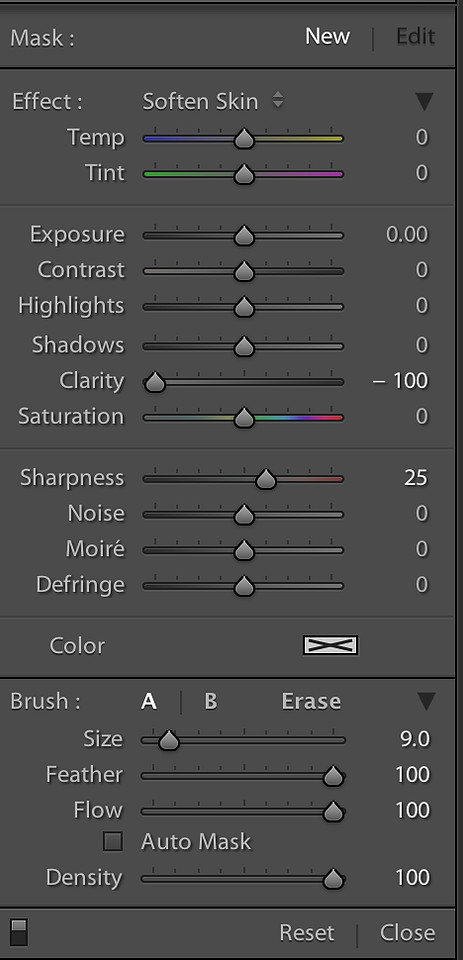
The Adjustment menu will allow you to brush on a number of presets.
Click on New and then Click on Effect: and Select Soften skin
You will now be taken into brush mode where you will simply brush over the skin to apply the effect.
First step is to adjust your brush size, either by using the slider for brush size, or if you have a magic trackpad on a mac slide up / down with two fingers will adjust the brush size.
The next step is to enable show selected mask overlay, either by clicking the checkbox at the bottom of the screen:

What this does is it will mark in red all the areas you paint over.
Paint over the skin to the point where you have a similar effect as below
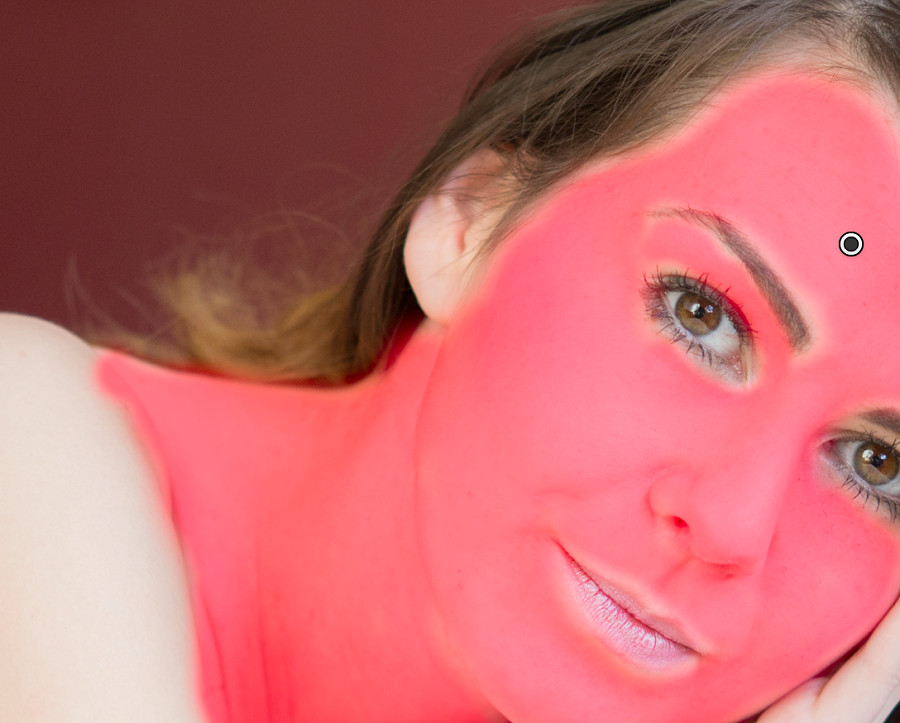
You can press O to toggle the mask on/off and you can play with the clarity slider to adjust the amount of softness. So take a snapshot and move onto the next step.
Stage 5 Enhancing the Irises
I want to brighten up the iris’ to add nice colors to them and to exaggerate some of the nice catch light. For this I will continue using the Adjustment layer and I clicked on New followed by , you guess it, Iris Enhance.
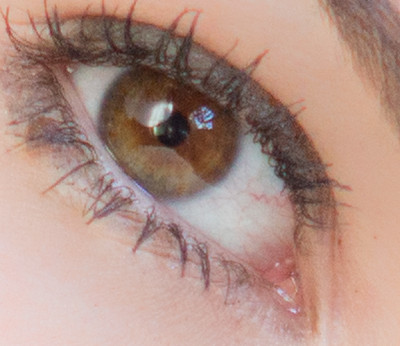
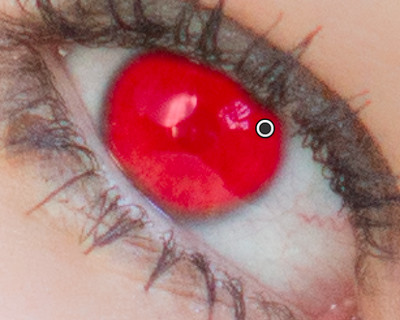
Switching off the overlay mask (pressing O) and zooming out to fit the screen the whole face will allow you to adjust both clarity and saturation
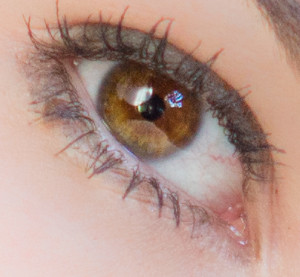
Enhanced just enough to catch the catchlights
Stage 6 Exposing the whites of the eyes
Now when you brighten up the eyes you want it to be subtle because if the eyes are too bright it will have an abnormal look. The best way to check if eyes are too bright is to simply zoom out to a thumbnail view and check to see if the eyes look like they are glowing or unusually bright based on the surrounding tones.
The step is similar to above where you will click new in the adjustment brushes followed by Dodge, switch the overlay on and pain the white area. Now I zoom the image so it fits the screen but concentrate on the small preview thumbnail. The reason is so you can pick up the subtlety of adjustments, otherwise if you whack it up full power you end up with a cartoon style, remember everyone has a little pink in their eyes.
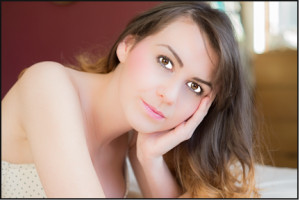
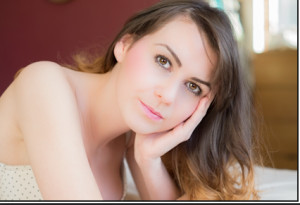
Keeping the exposure to about .4 will be about right
Stage 7 Saturating the lips
Now we’re going to move onto the lips. Click on new in the adjustments area and this time select saturation. Again as before paint across the lips using the overlay mask as a visual aid.
Also you only want to subtly boost the colours of the lips
Stage 8 Add Highlights to the hair
As Frankie’s hairs was light enough, especially as this was in full sunlight, I decided I didn’t need to do anything to the hair. If you want to add highlights you would add a little dodge effect and lightly brush over the area.
Stage 9 Darken the eyebrows
Eyebrows
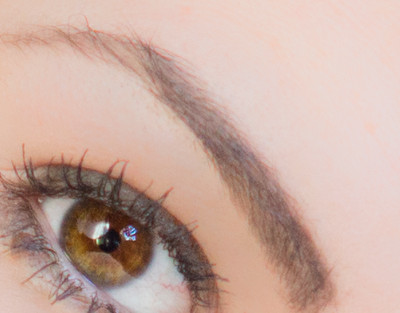
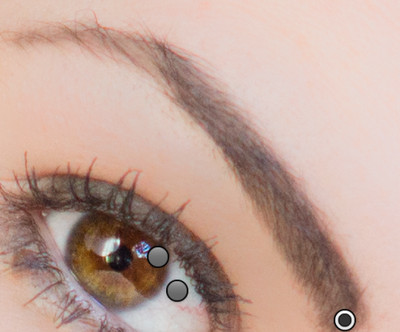
For this adjustment I am going to use the Burn adjustment effect. So Click on New in the adjustment effect area, followed by Burn. Remember to switch on the overlay so you can see where you are painting and brush away
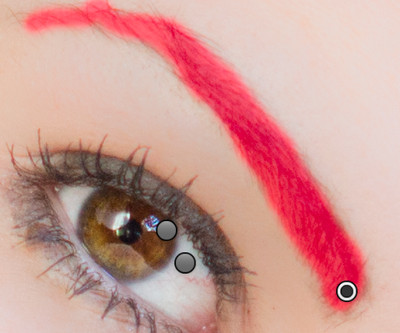
Reduce the exposure to about -0.40 and there you are:
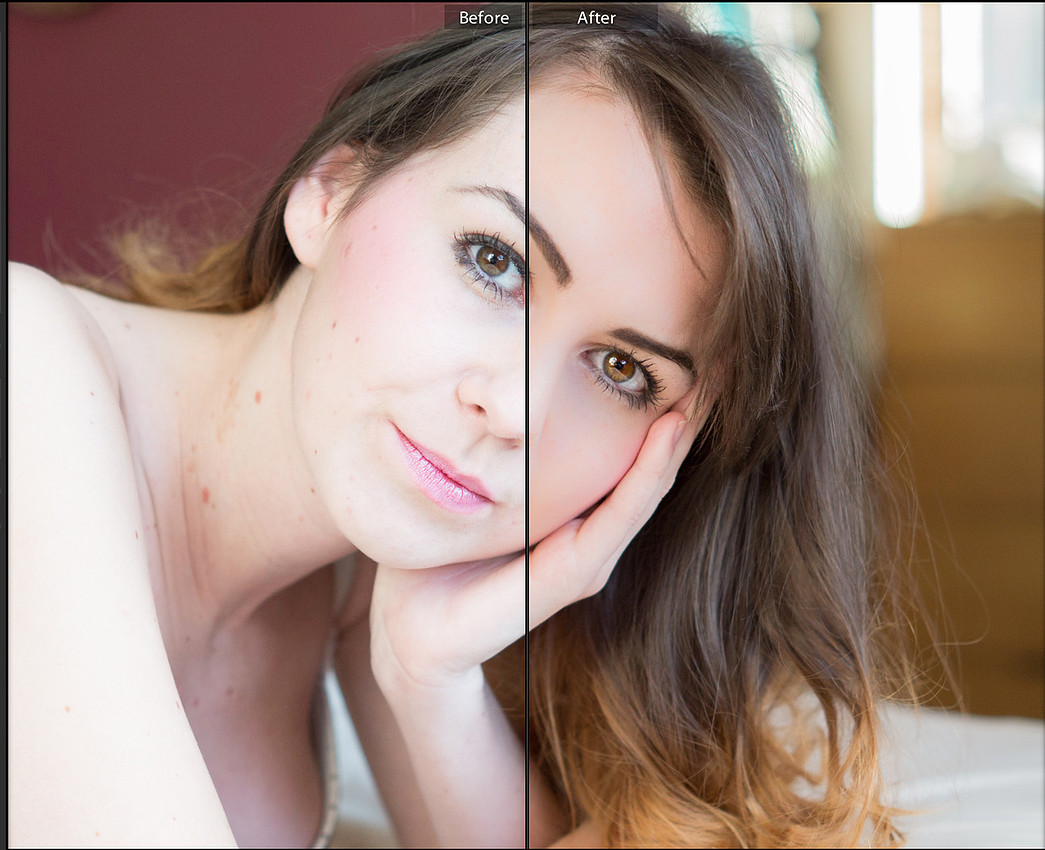
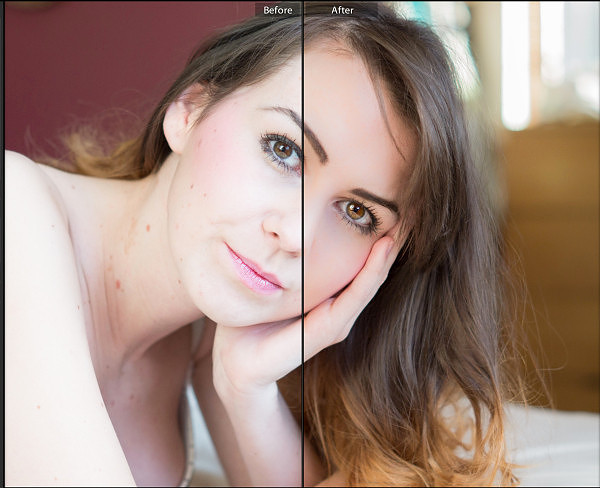
So now I have applied all my adjustments I can preview my image with a before and after view in Lightroom. From this option I can view images side by side or split the screen image as the shot below will demonstrate.
Stage 10 Applying a preset for Black and White
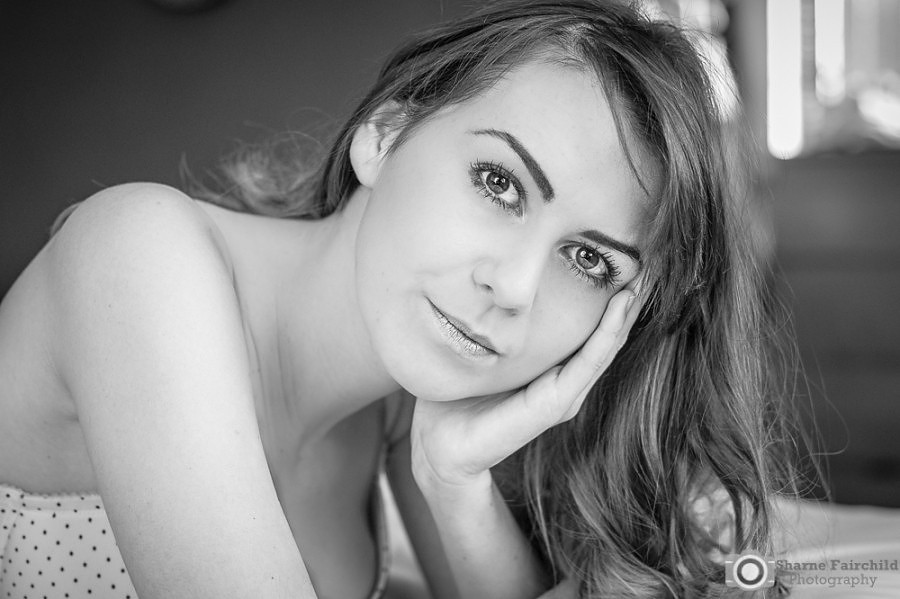
For me I thought this image would be better in black and white so I applied a black and white preset to the image with the final result being below